
AI Backlog for Jira

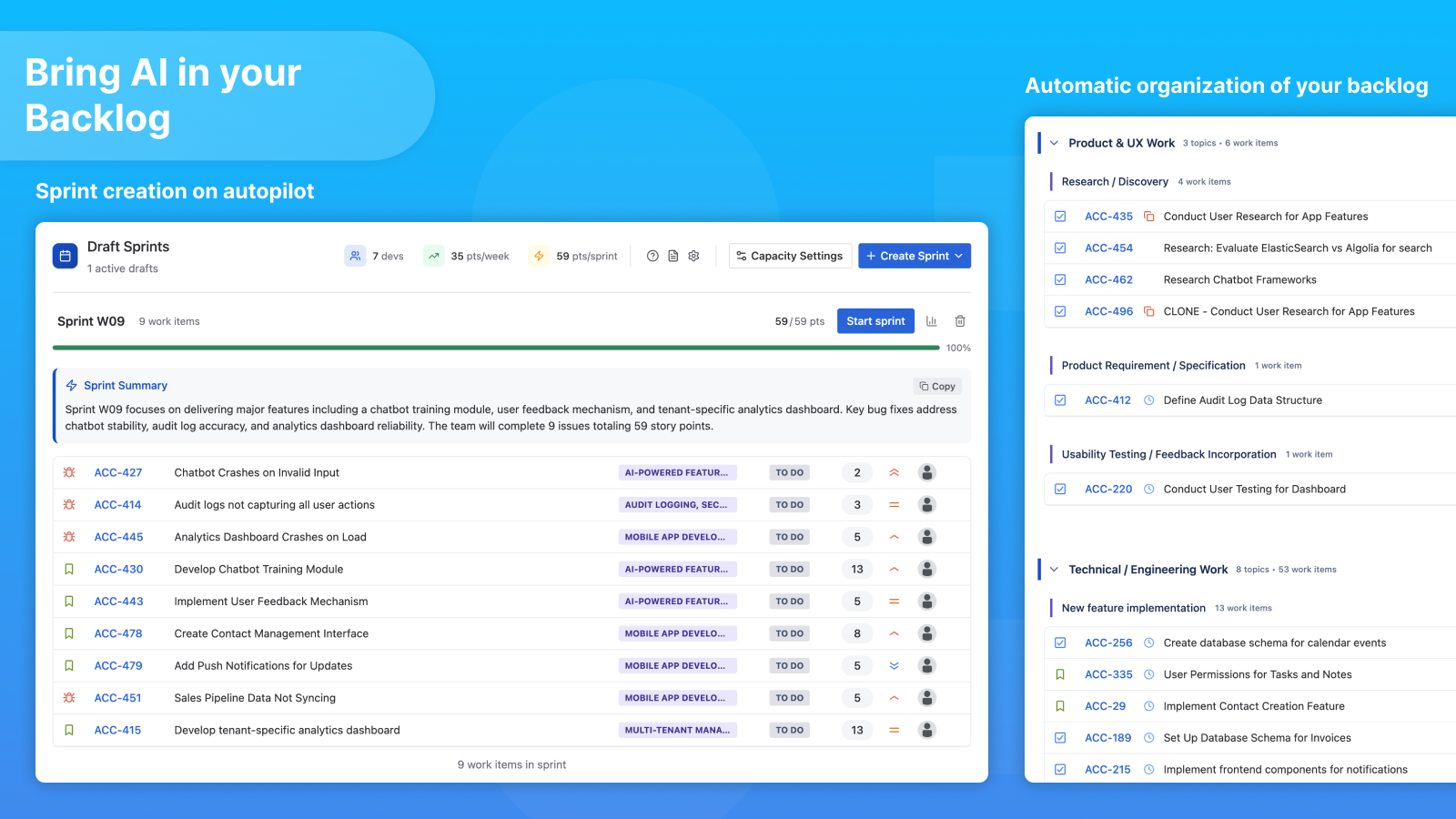
An AI co-pilot for backlog grooming and sprint planning in Jira
🏁 Codegeist 2025 - 3rd place winner + Best Rovo Apps
Turn backlog chaos into clear work themes and sprint-ready options.

Introduction
Welcome to the user guide for AI Backlog for Jira. In this guide, we’ll walk you through the key features of our extension for Jira Cloud.
AI Backlog for Jira is a third-party app built to support Product Managers, Project Leaders and Scrum Masters with backlog grooming and sprint planning by organizing work into clear topics, surfacing planning signals, and helping you draft capacity-based sprints, while keeping you fully in control of the final plan.
Who is it for?
- Product Managers
See the backlog by themes and outcomes, not endless lists and align sprint composition with product priorities.
- Scrum Masters / Delivery Leads
Spend less time prepping planning sessions and start with a realistic draft aligned with capacity and intent.
- Engineering Leads
Reduce surprises with risk signals (blocked work, duplicates, stale items) and keep work balanced across tech debt, features, and stability
Teach the AI how your team works
Key features
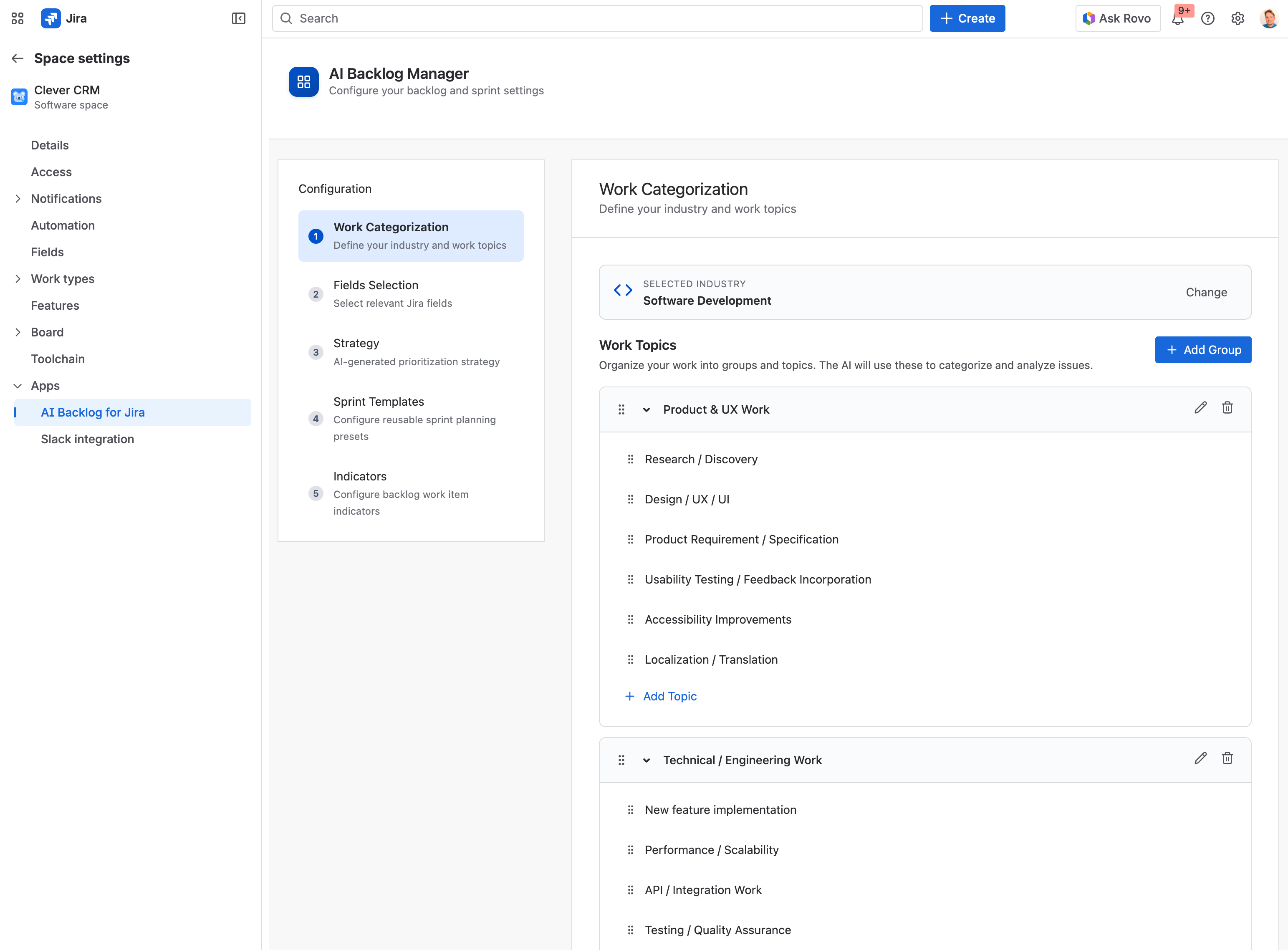
- Define Work Topics (groups + topics) that match how your team plans
- Auto-categorize issues into topics to speed up grooming and prioritization
- Teach the AI your context by selecting the Jira fields that matter (priority, type, story points, etc.)
- Discover your planning strategy from historical sprints (editable baseline)
- Spot risks early with indicators (duplicates, blocked, aged) that also improve sprint drafts
Defining Work Topics
- Navigate to your Space Settings
- Locate Apps > AI Backlog for Jira
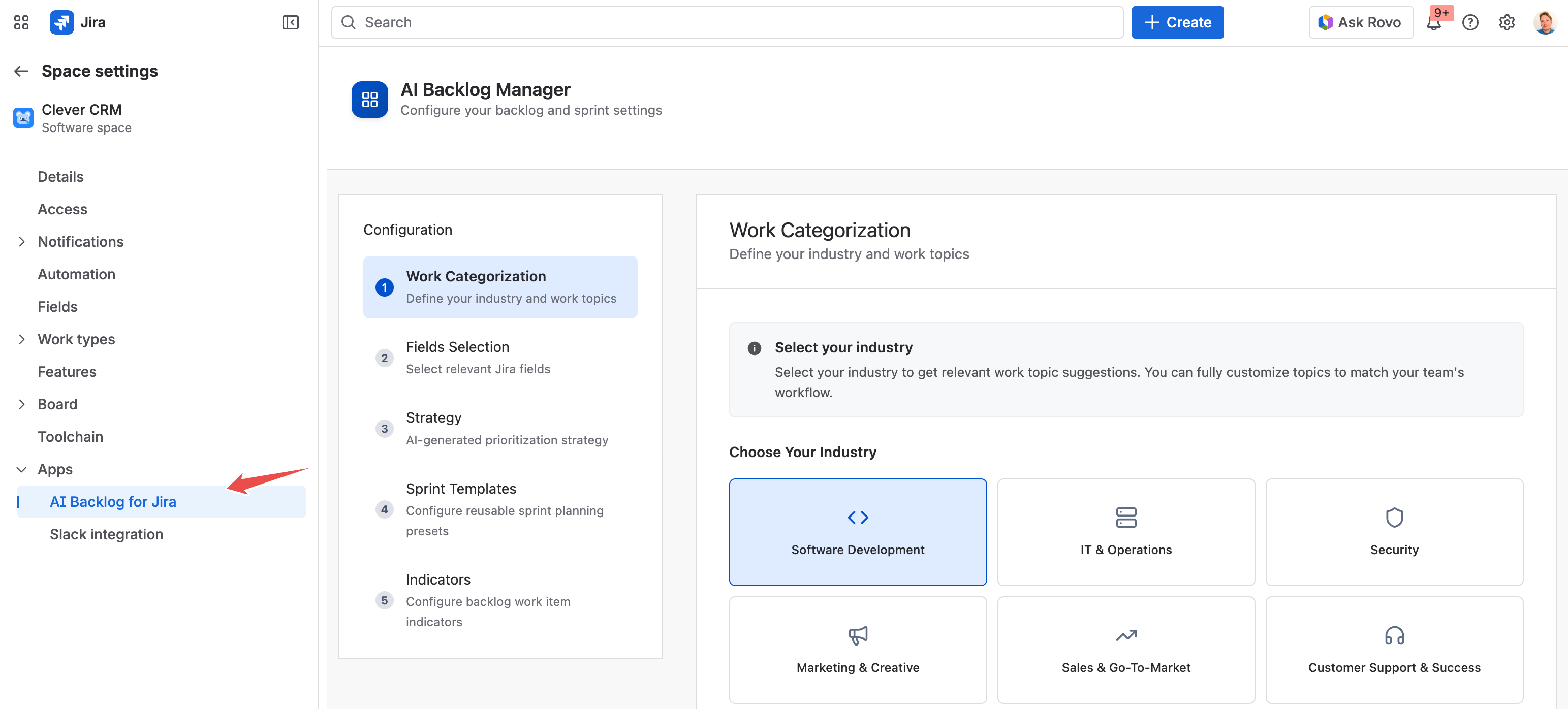
- Select your industry and review the predefined list of work topics.
We encourage you to fine-tune the groups and items.
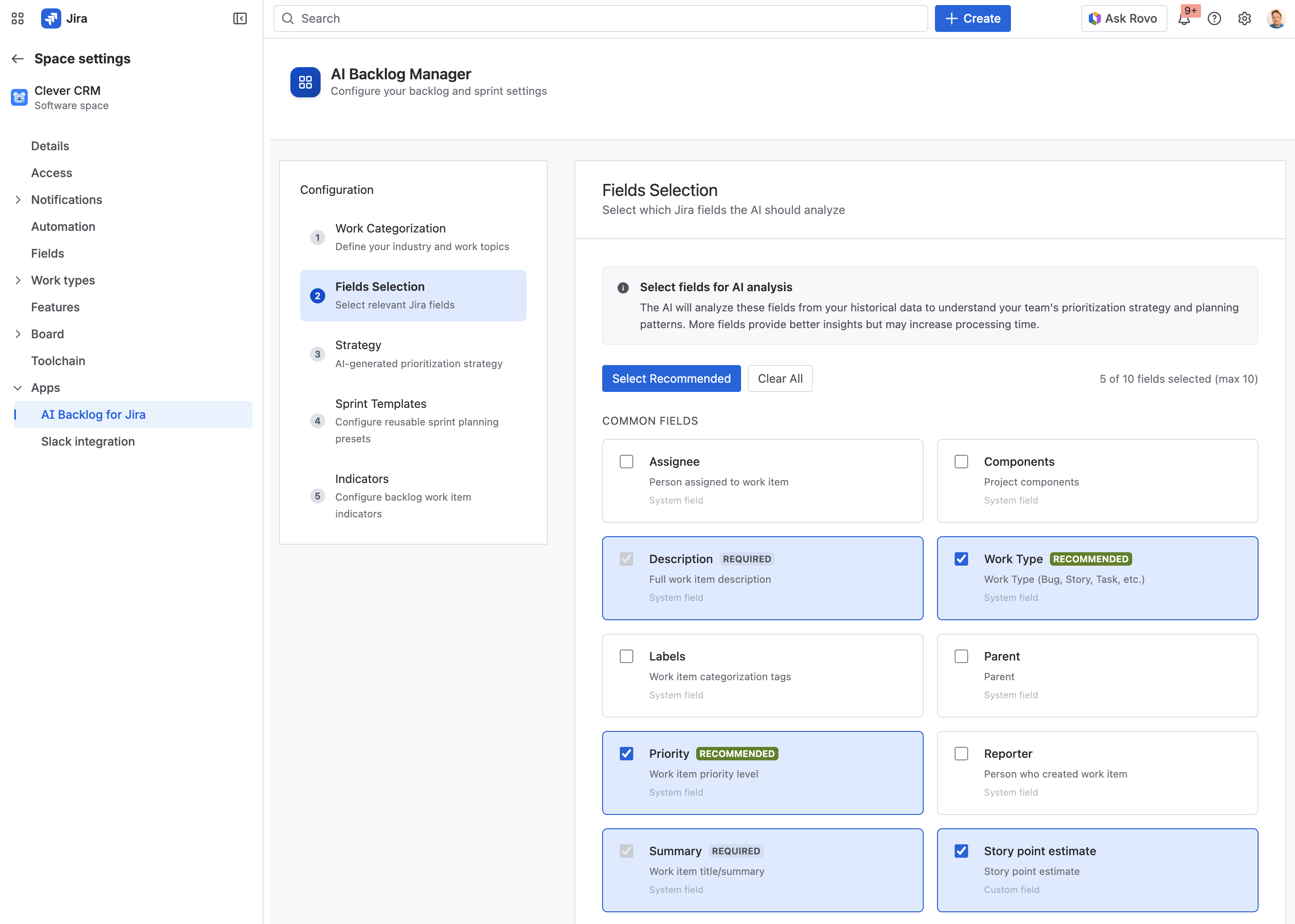
Choose what the AI should analyze
- Select Jira fields the AI can use to understand the work and your patterns.
AI Backlog for Jira doesn’t “guess” based on one field. It builds recommendations from the same signals your team uses when grooming and planning. That’s why selecting the right Jira fields matters: it tells the AI what evidence to consider when it categorizes issues, understands effort, and drafts sprint candidates.
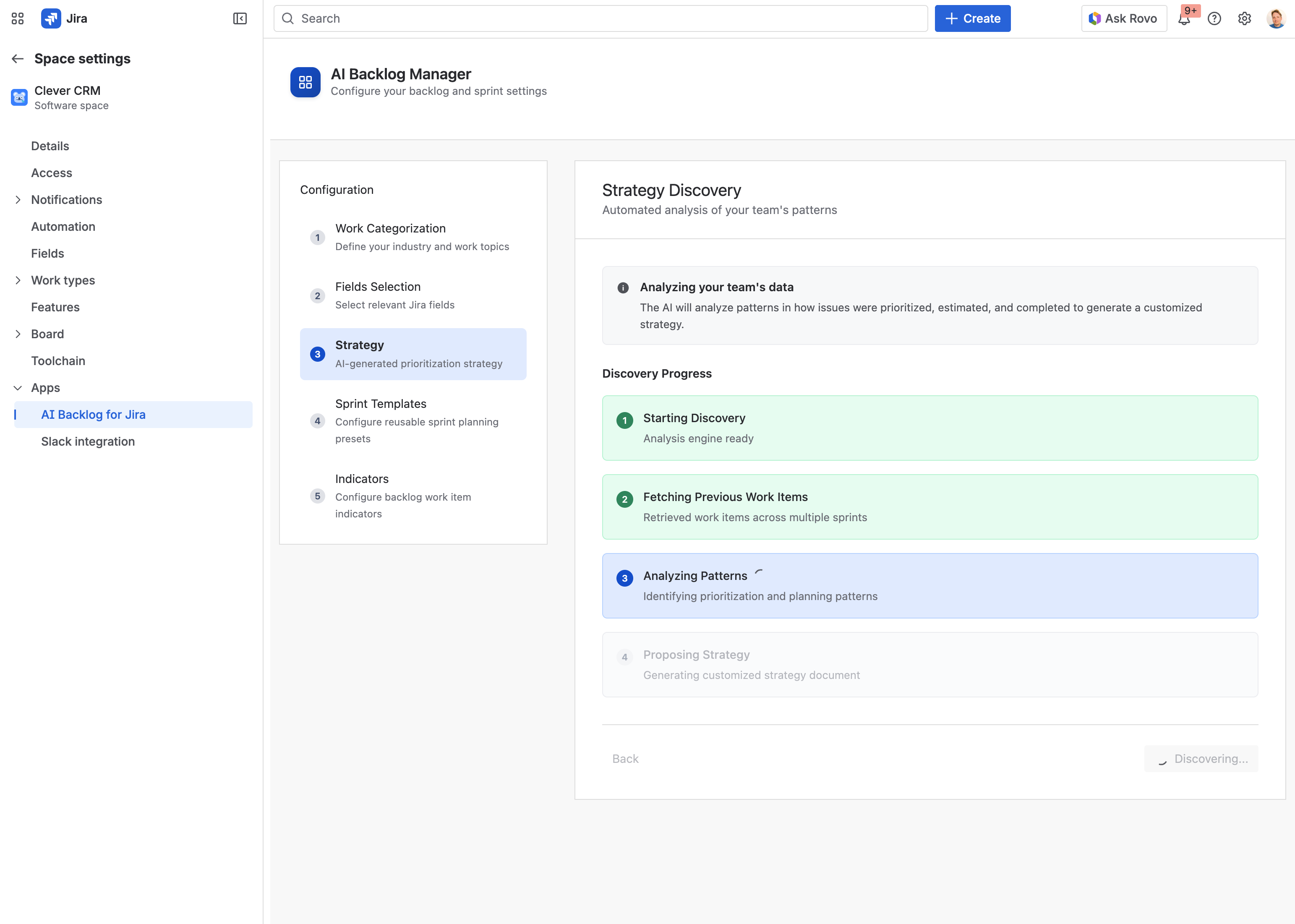
Discover and set your strategy (how the AI should plan)
- Your team already has a “strategy”, even if it’s not written down.
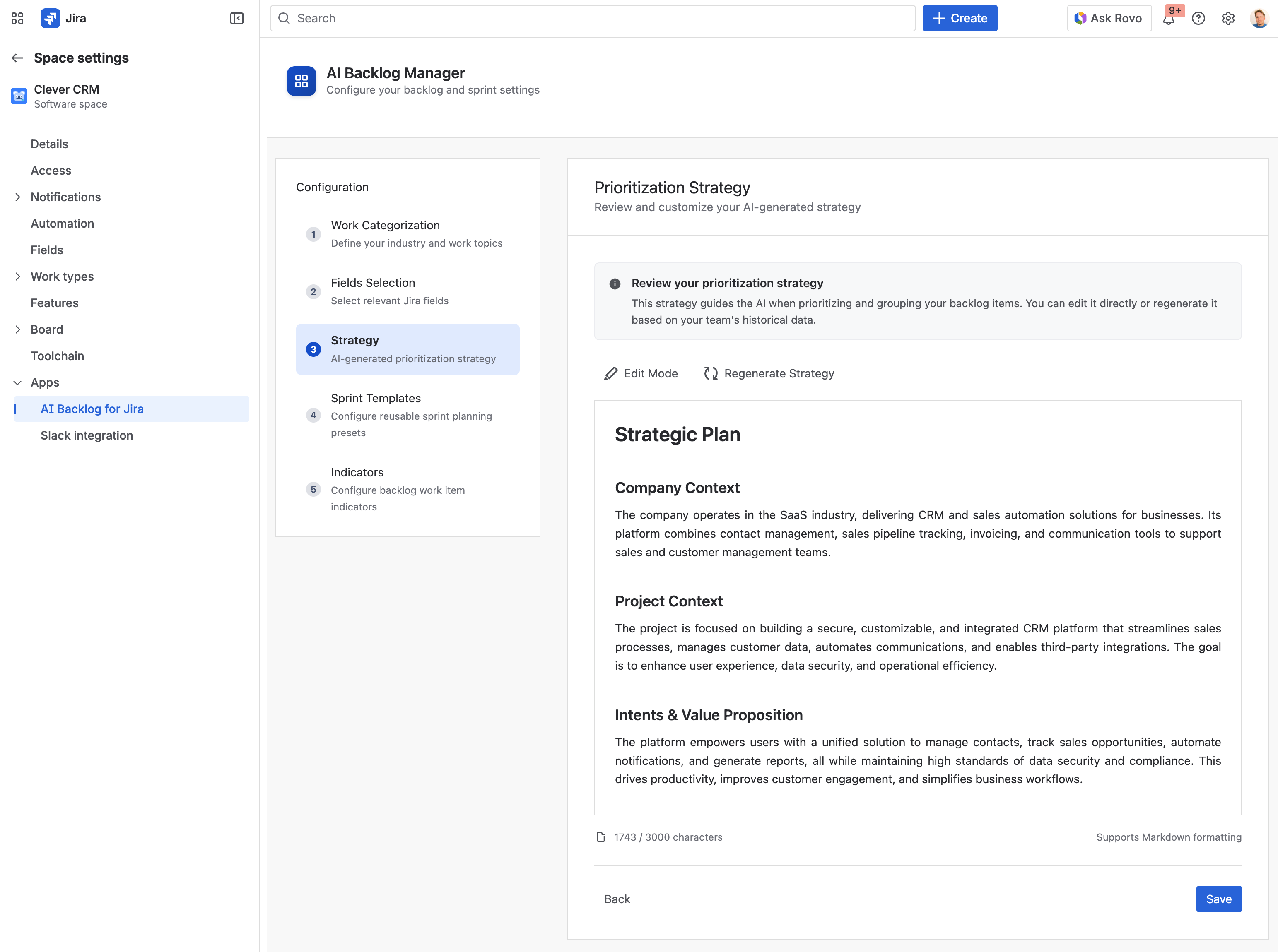
Over time, you’ve developed patterns in how you prioritize work (bugs vs. features), how you estimate, what you tend to pull into sprints, and what usually gets deprioritized. Strategy Discovery is the step where AI Backlog for Jira learns those patterns from your historical Jira data and turns them into a clear, editable planning baseline.
What “strategy” means in AI Backlog for Jira
In the app, your strategy is a set of planning rules that guide decisions like:what tends to be prioritized first (e.g., production bugs > improvements > new features), how different work types are treated (Bug vs Story vs Task), what “small enough” or “too large” looks like for your team, how to balance sprint composition across topics (stability, customer value, tech debt, etc.)
Sprint Templates (repeatable planning presets)
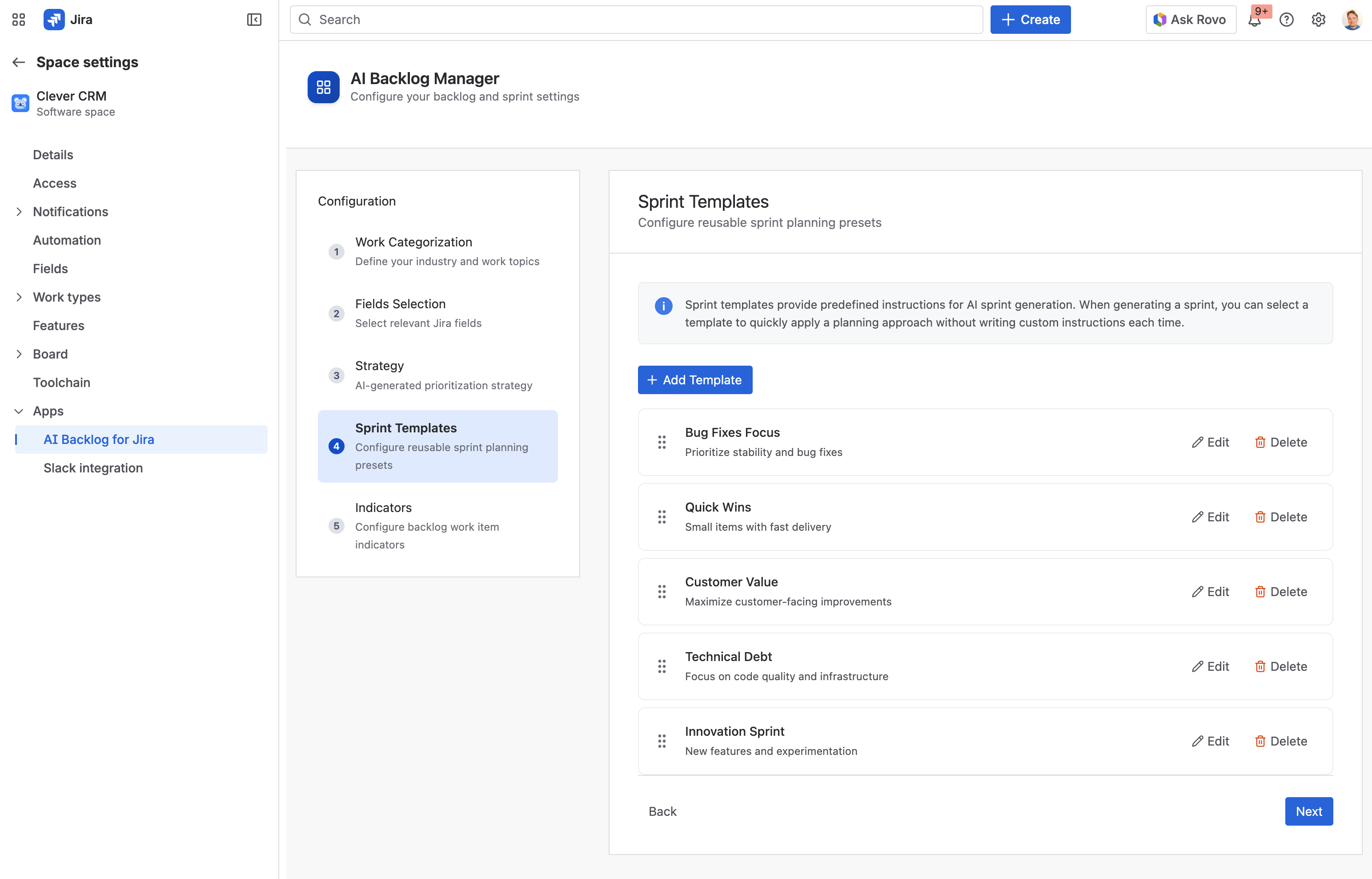
- Sprint Templates let you save your most common sprint-planning approaches as reusable presets.
Instead of rewriting instructions every time you generate a sprint, you can pick a template (or create your own) and instantly guide the AI toward the outcome you want.
Indicators (spot risks early and improve sprint drafts)
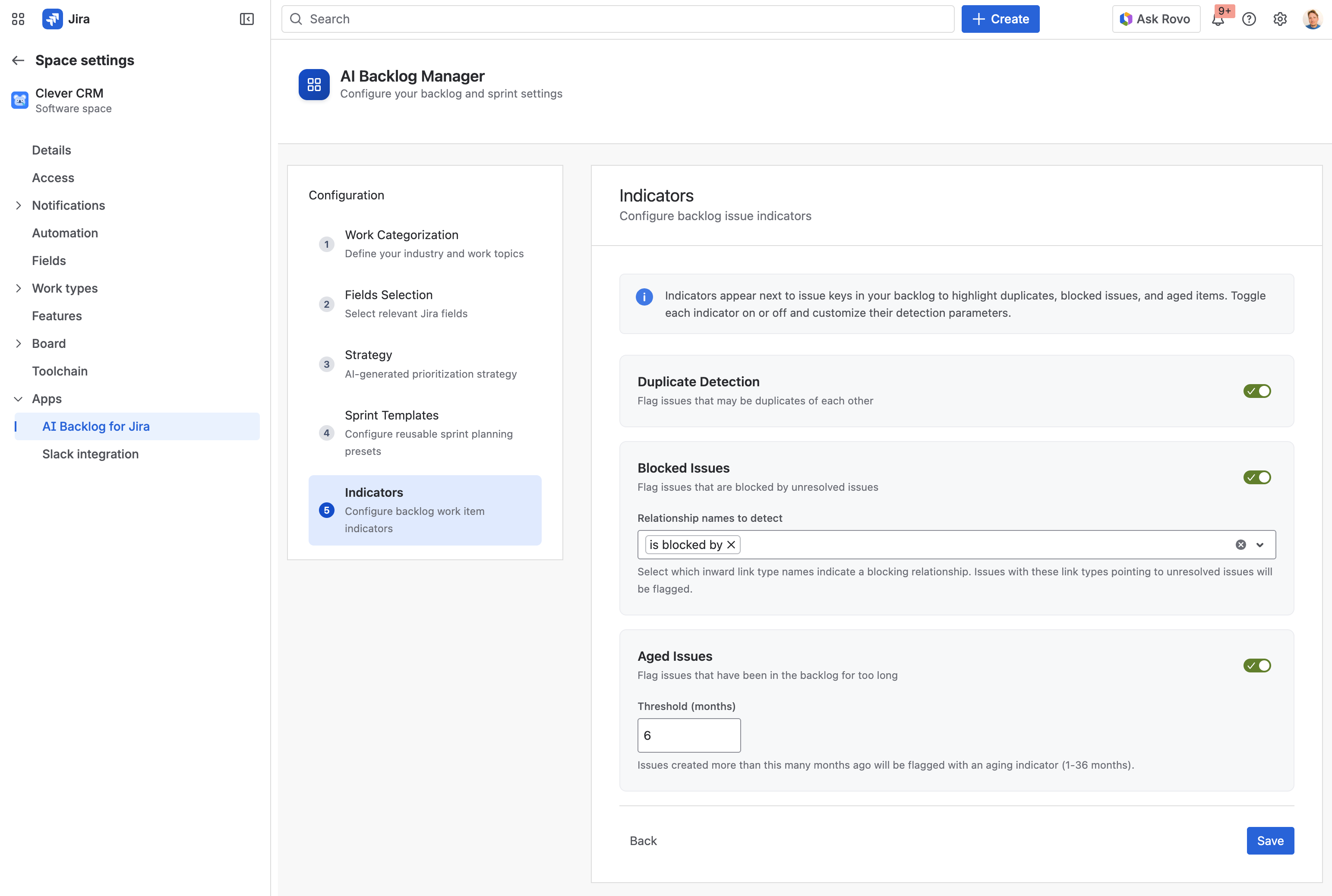
- Indicators add lightweight “signals” next to issues in your backlog so you can quickly see potential risks before they turn into surprises during planning.
They also help the AI generate cleaner sprint drafts by avoiding items that are likely to waste time or get stuck.
On this screen you can enable/disable each indicator and fine-tune how it behaves.
Generating sprints with AI
Key features
- Configure team capacity (dev count, sprint length, velocity)
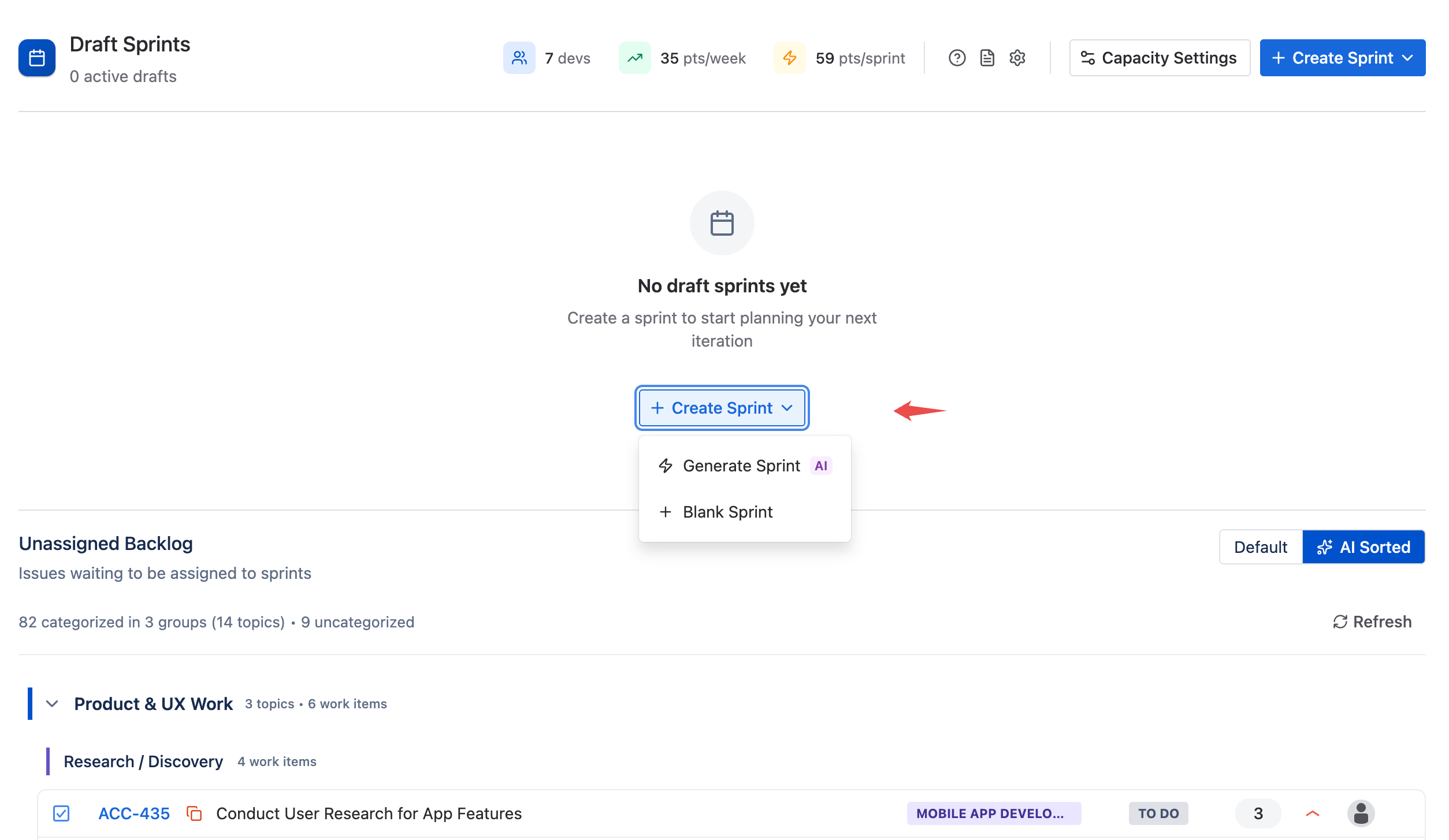
- Generate a sprint using prompts, predefined templates or project strategy
- Produce a draft you can refine in seconds instead of building from scratch
Accessing AI Backlog for Jira
- Open your Jira Space
- Locate More > AI Backlog
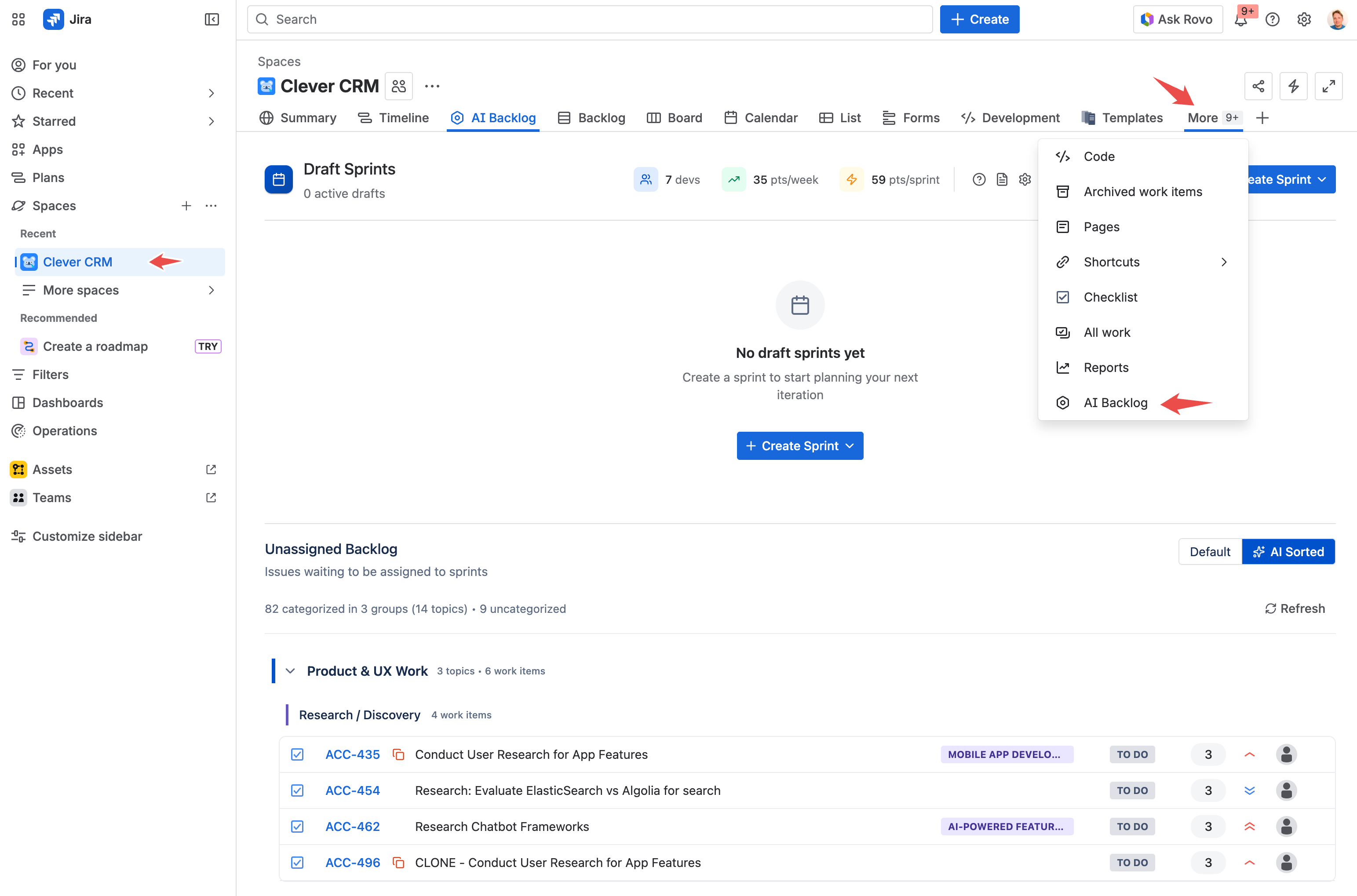
- Select your industry and review the predefined list of work topics.
We encourage you to fine-tune the groups and items.
Set team capacity
- Tell the app how much you can realistically take on this sprint.
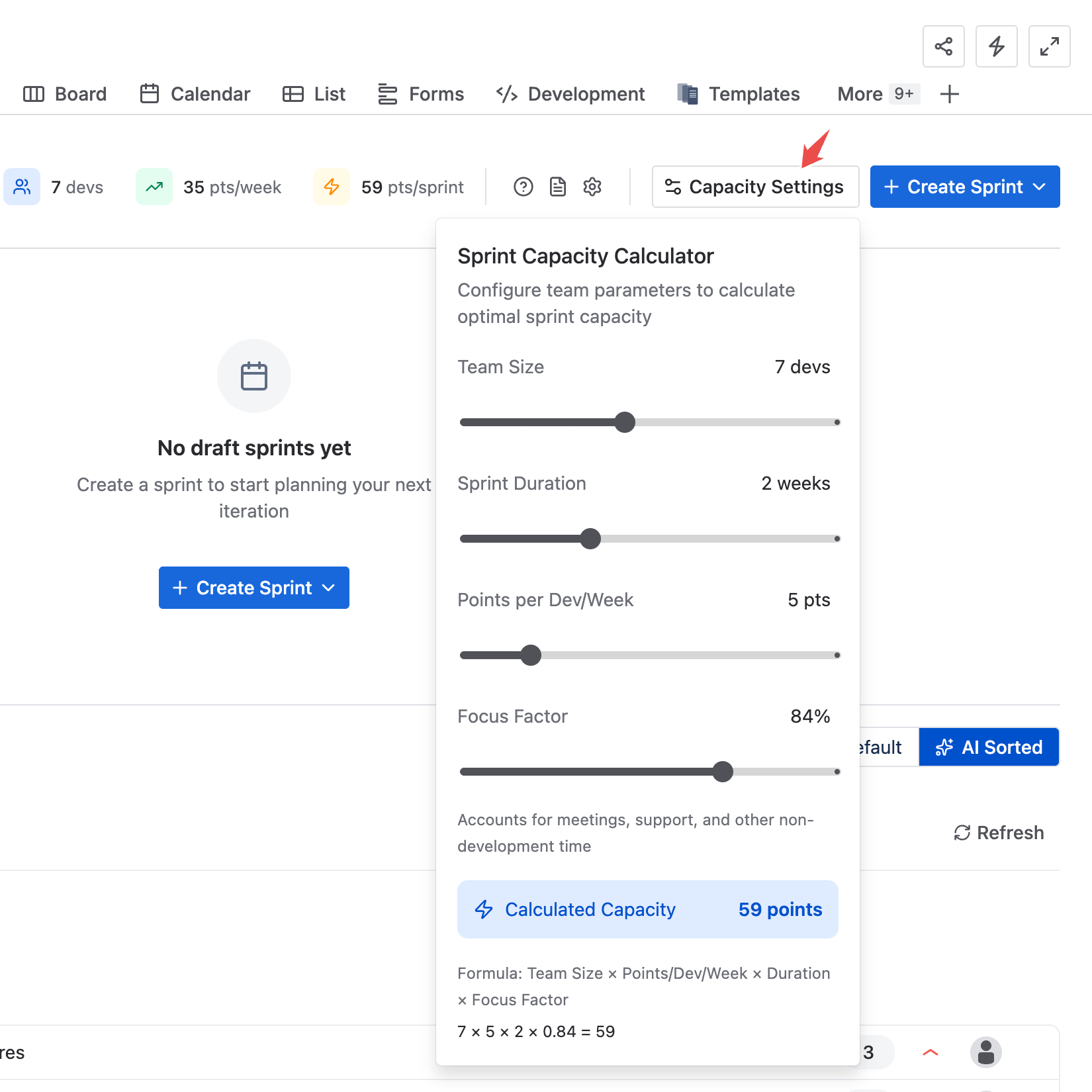
Generate a sprint draft
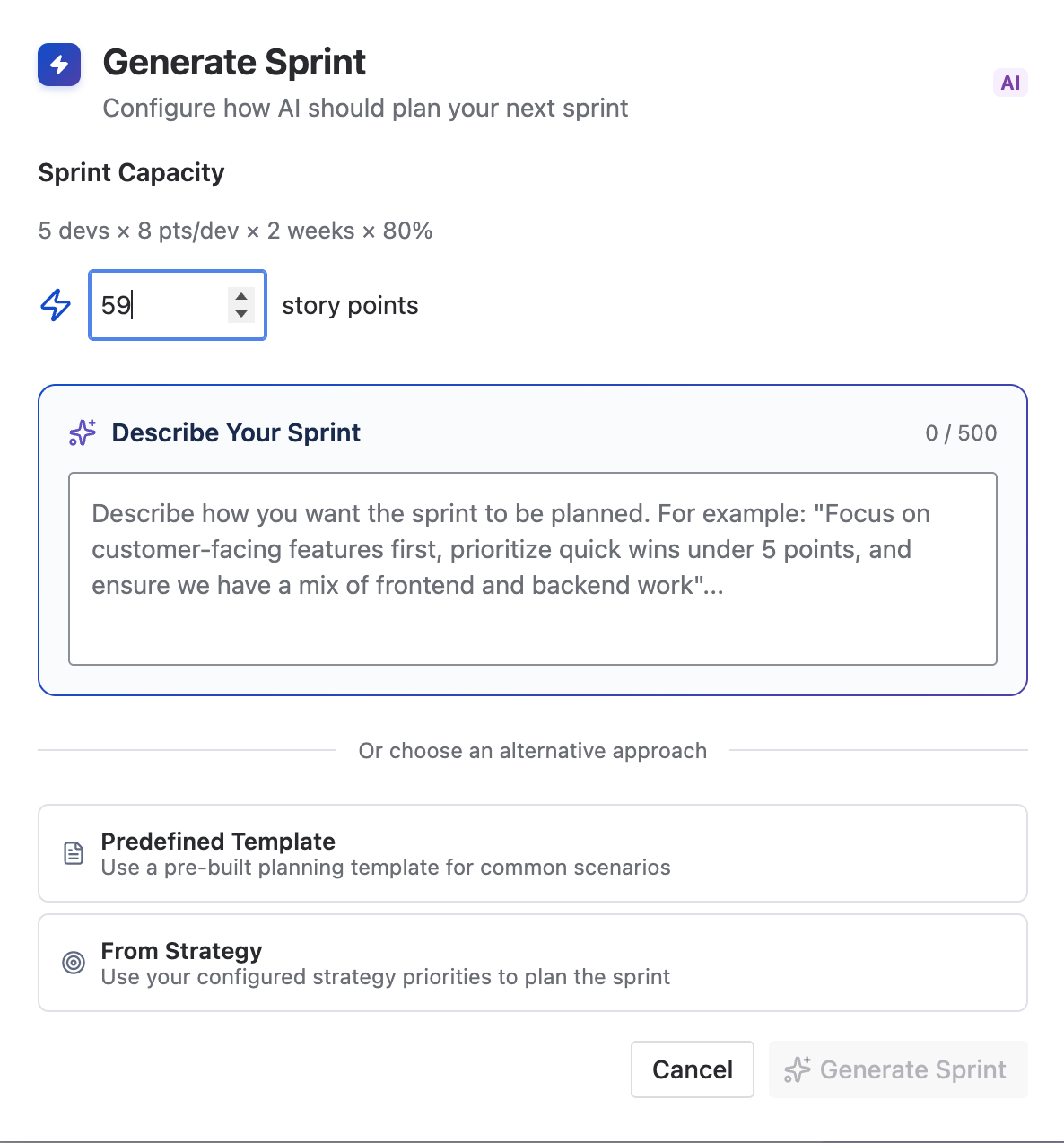
- The Generate Sprint dialog is where you ask AI Backlog for Jira to produce a sprint draft.
Think of it as a fast way to get to a good starting point for your planning session. You can still review, adjust, and finalize everything before starting the sprint.
Describe Your Sprint
This text box lets you give the AI lightweight context for this specific sprint, beyond your general strategy and templates. It’s ideal for short-term constraints and goals, like:
- “Prioritize stability and production incidents.”
- “Keep items under 5 points and avoid risky work.”
- “Include at least one customer-facing improvement.”
- “Balance frontend and backend work.”
- “Focus on onboarding and billing this sprint.”
The goal isn’t to write a long spec, just the kind of guidance you’d normally say out loud during planning.
Use the fields you selected in Fields Selection
The AI can reliably apply rules based on fields you previously chose to analyze (priority, issue type, story points, labels/components, and any custom fields you selected in the settings).
This makes your prompt much more powerful, because you can reference your team’s real planning signals.Examples:
- Customer / Account (dropdown/custom field): “Prioritize work items for customer Foo Inc.”
- Component: “Focus on Billing and Authentication components.”
- Labels: “Prioritize items labeled security and regression.”
- Issue type: “Pull bugs first, then small stories.”
- Story points: “Prefer items ≤ 5 points.”
Sprint insights & backlog signals
Key features
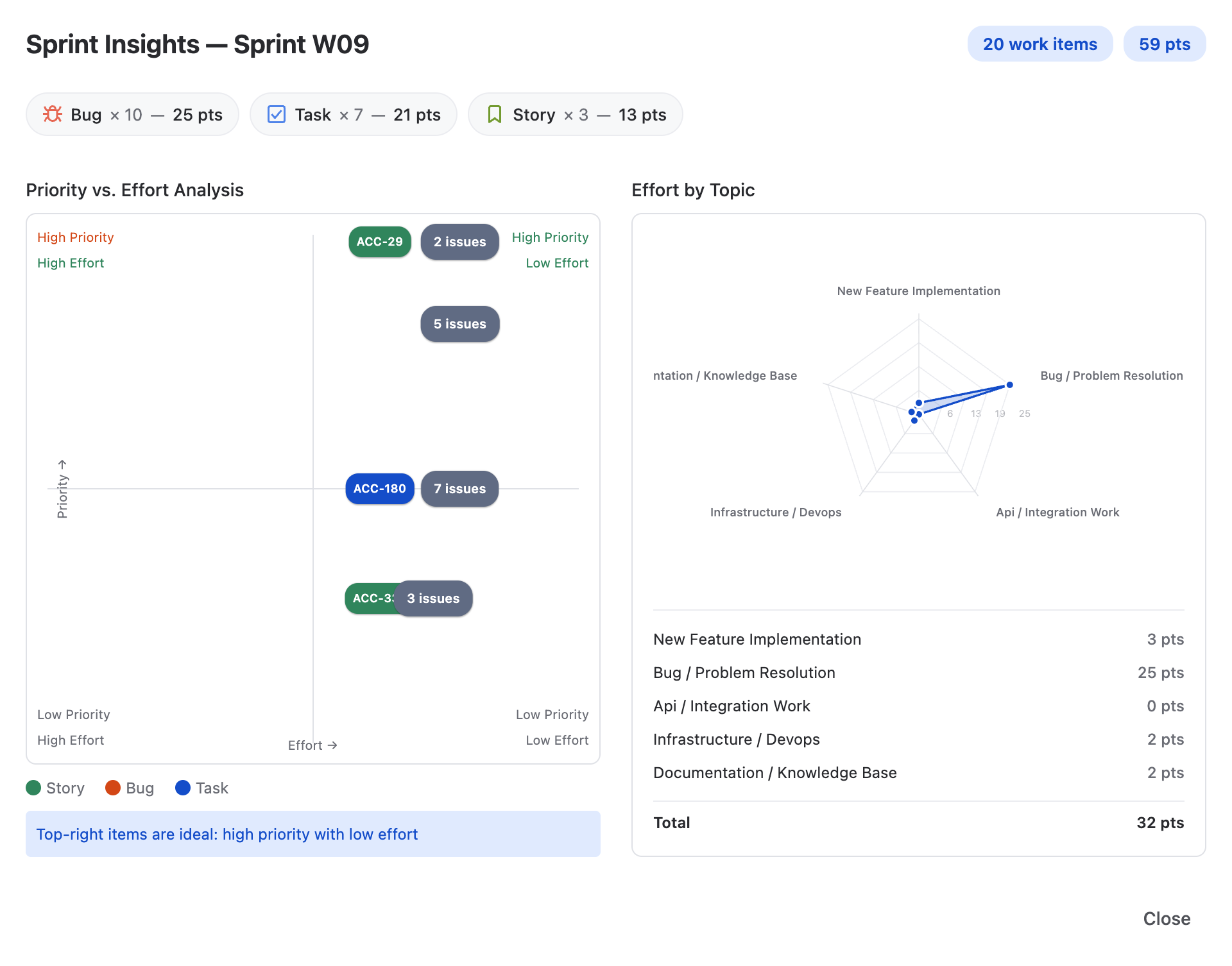
- Sprint Insights to validate balance Priority vs Effort view and Effort by Topic distribution
- Indicators to highlight risks in the backlog (Duplicate detection, Blocked and Aged work items)
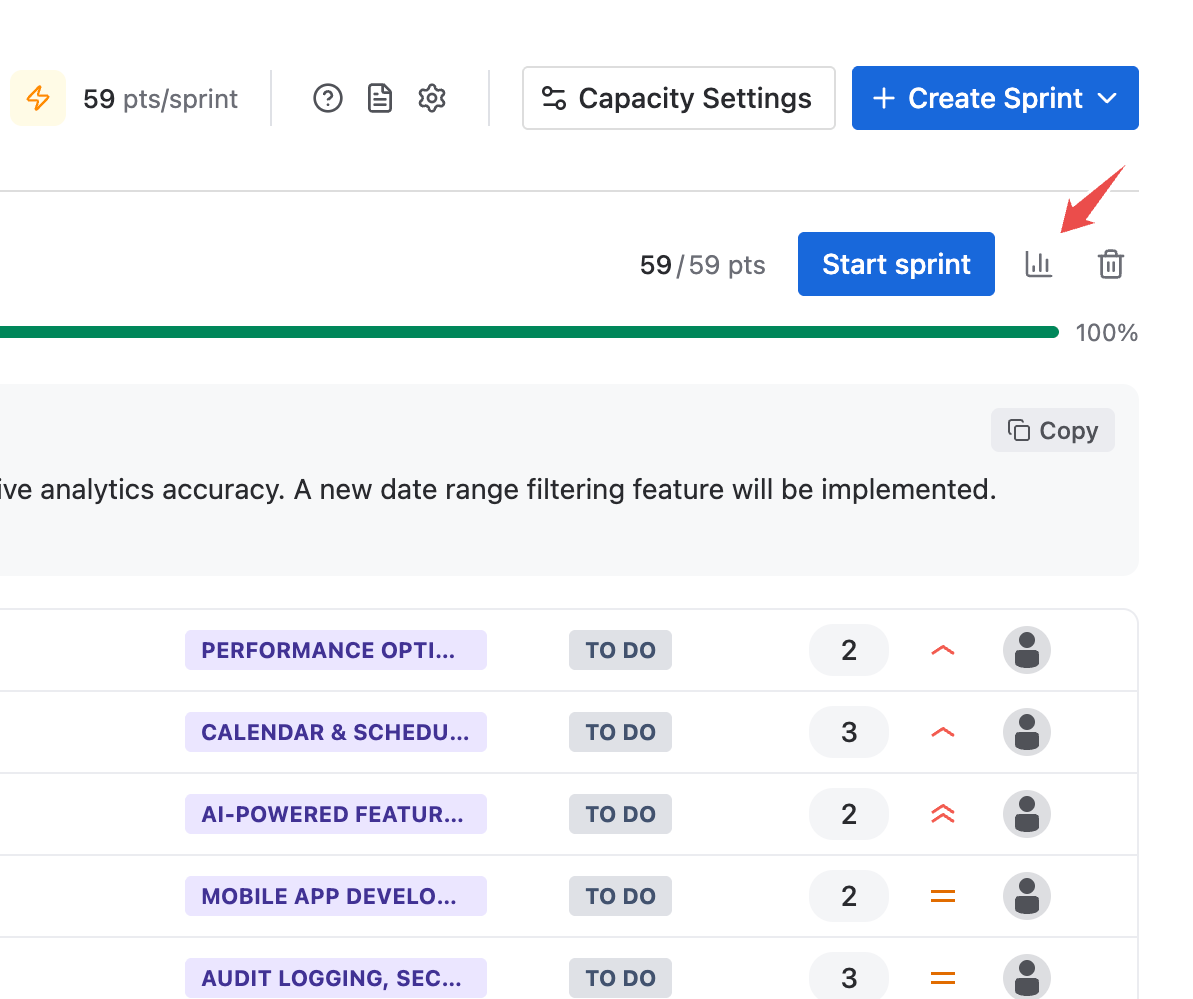
Review sprint balance in seconds
- See whether the sprint is skewed toward low value, too risky, or overly concentrated in one area.
.png)