

Calendar Embed & Sync
Embed and Sync Google Calendars within monday.com
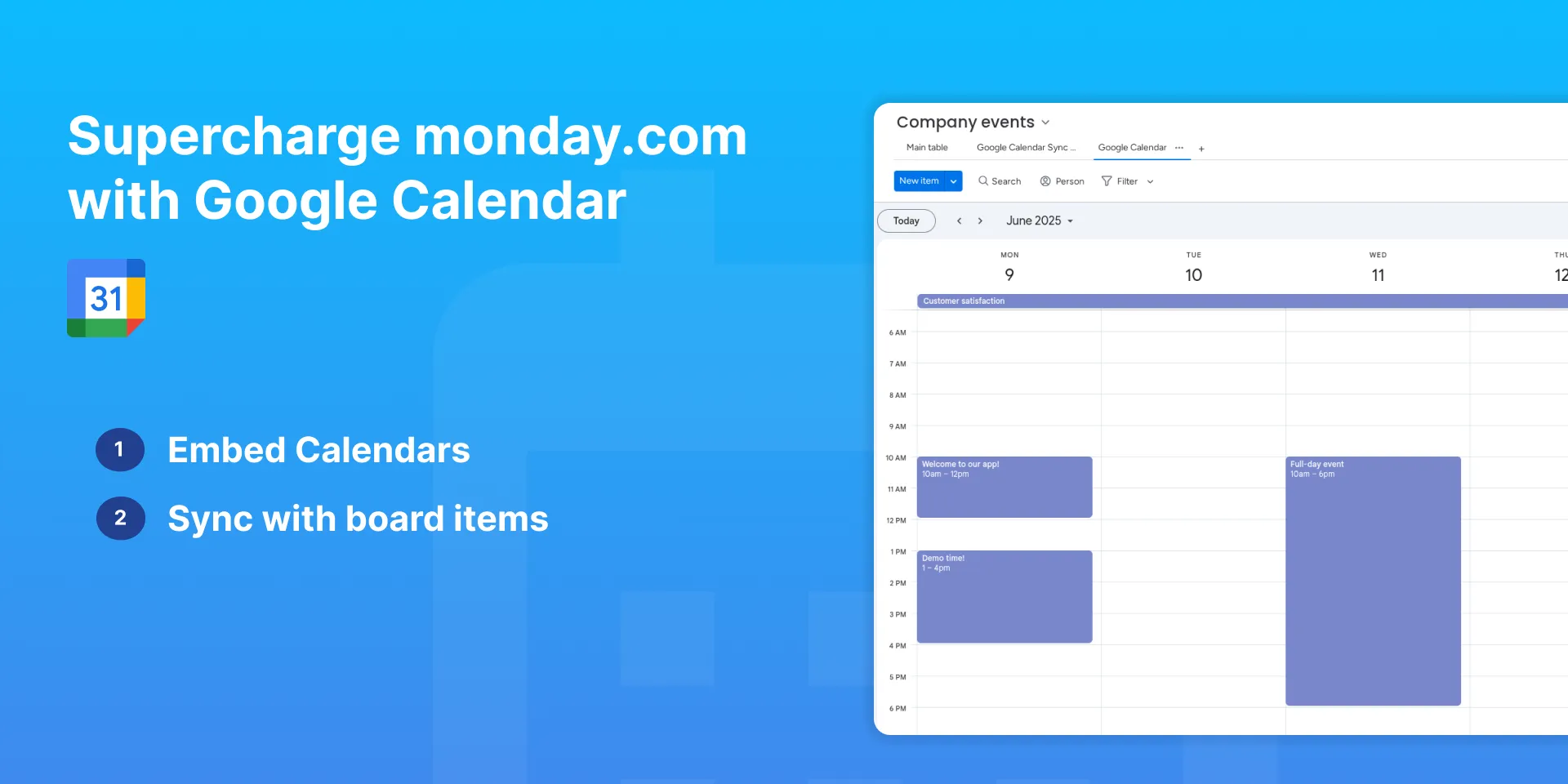
Easily embed your Google Calendar in monday.com and sync events with your boards - keeping your schedule and tasks perfectly aligned.
Introduction
Welcome to the user guide for Calendar Embed & Sync. In this guide, we’ll walk you through the features of our extension for monday.com. Calendar Embed & Sync is a third-party app designed specifically to help you embed and sync Google Calendars directly within your monday.com boards.
Is this secure?
Yes, this app is built following security best practices from the ground up. OAuth2 tokens used to access your Google Calendar are securely stored in encrypted form. Also, make sure to check our Privacy Policy page.
Embedding Calendars
Key features
- Embed in a Board: Add your calendar directly to a specific monday.com board
- Embed as a Workspace Item: Display your calendar as a standalone item in your workspace
Embed a calendar in a monday.com Board
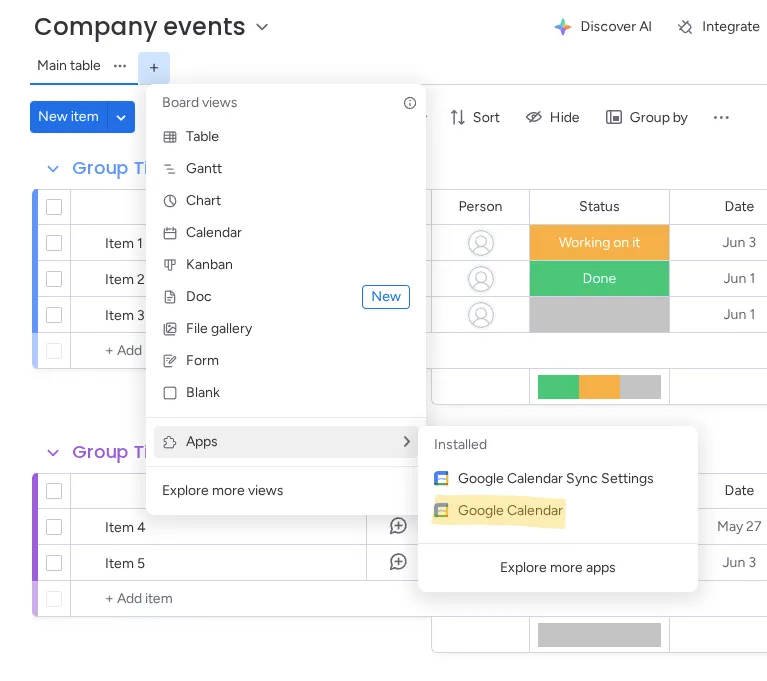
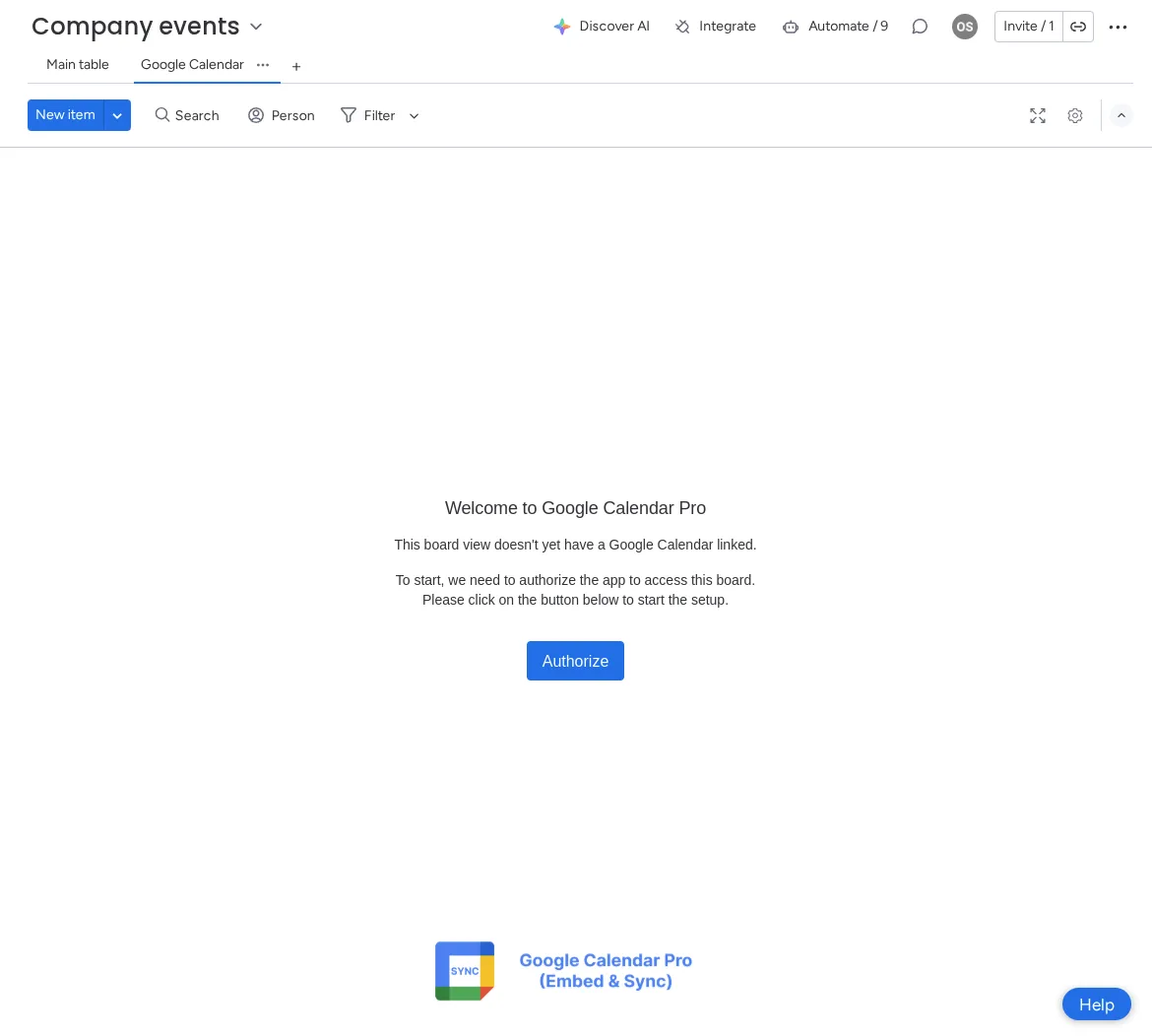
- 1
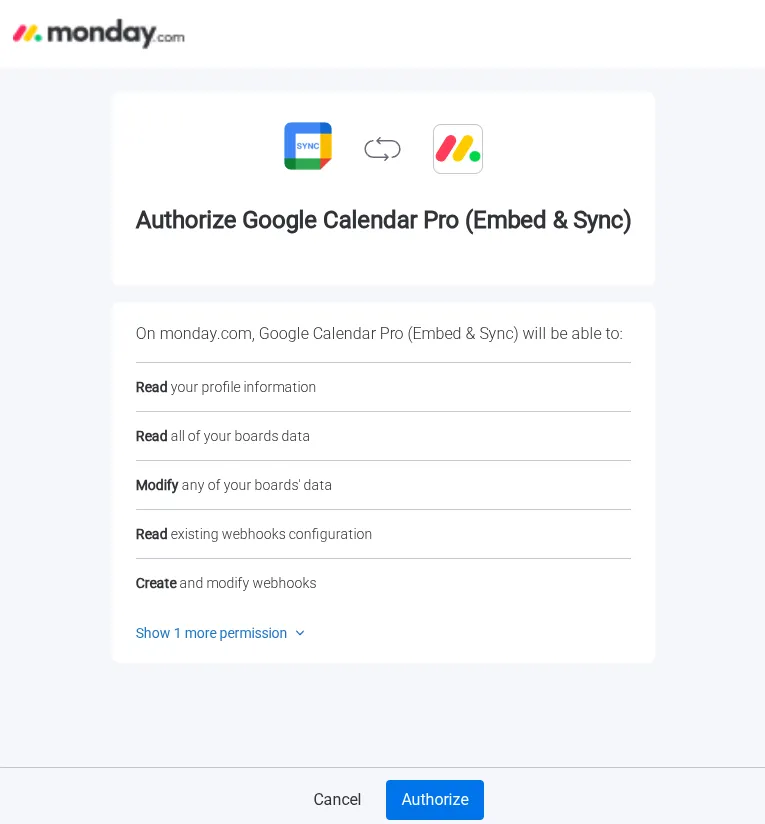
You’ll then see an authorization screen. Click Authorize again to proceed.
- 2
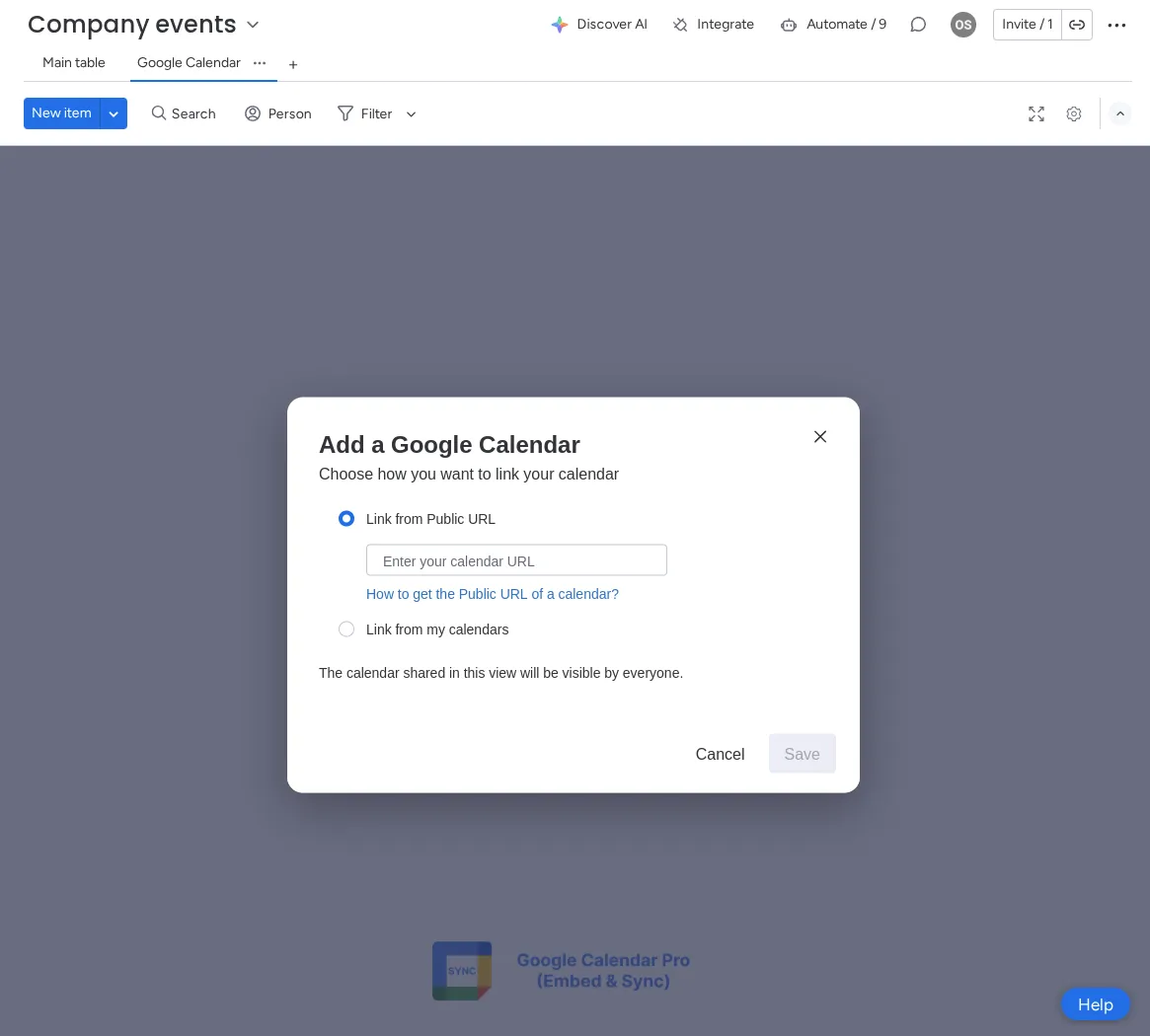
Next, you’ll be guided through a setup wizard. You can either paste a public Google Calendar URL or select a calendar directly from your Google account. See here how to get a public link for your calendar.
- 3
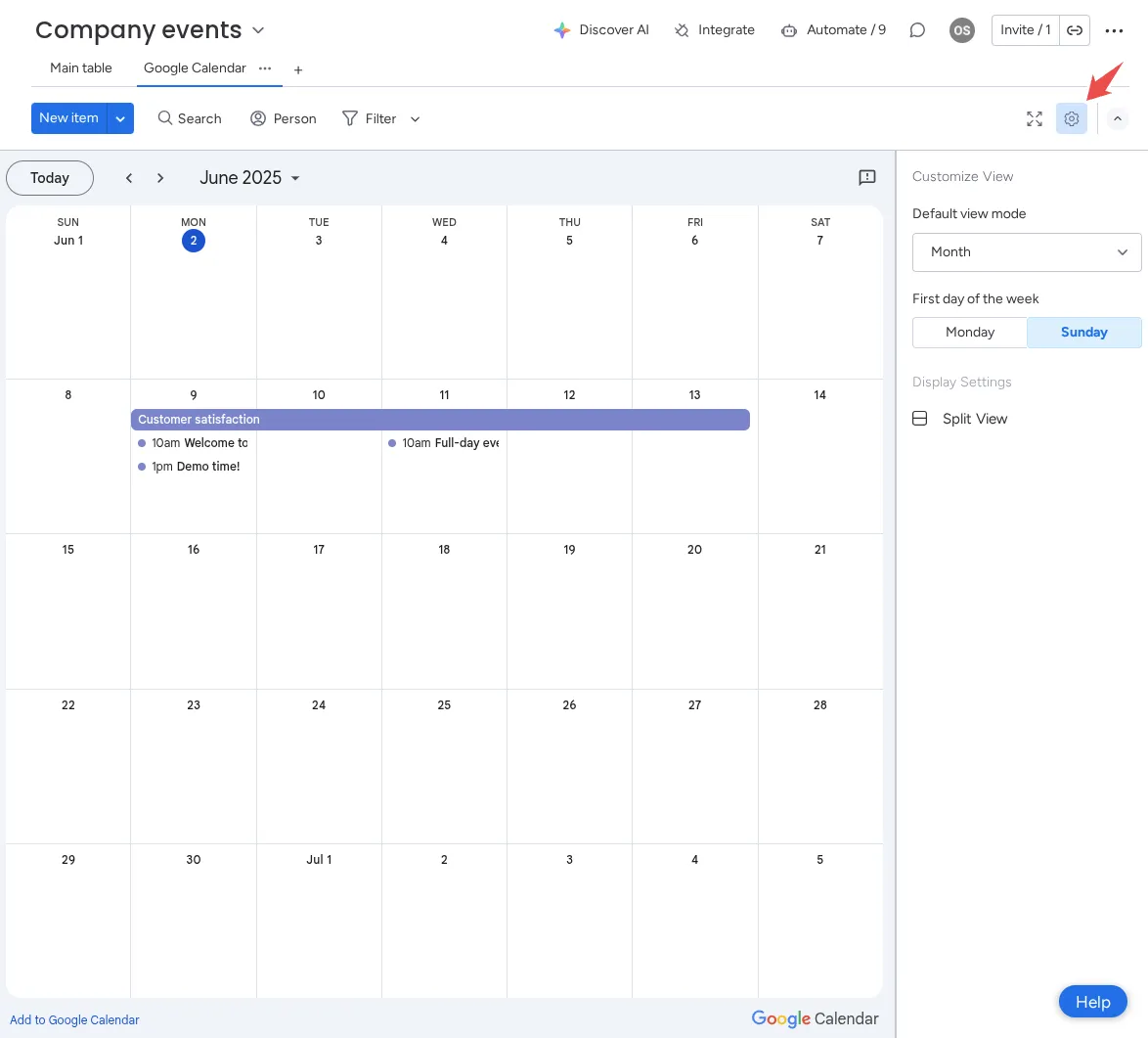
Once saved, your calendar will appear directly in the board view. To customize how the calendar is displayed, click the cog icon in the top-right corner of the screen.
Embed a calendar in a monday.com Workspace Item
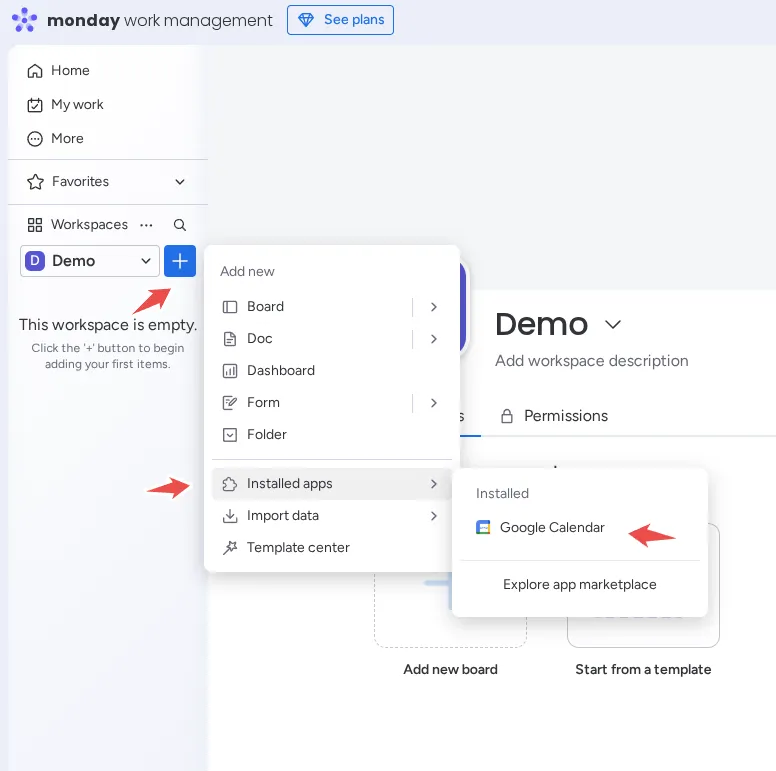
Calendar Embed & Sync allows you to embed a calendar directly as a workspace item, either privately for yourself or shared with your team. To do this, click the blue “+” icon on the left sidebar and select Google Calendar from the list of available apps. From there, the setup process is the same as embedding a calendar in a board: simply authorize the app, choose or paste your calendar, and customize the display to fit your needs.
Sync Calendars
Key features
- 2-way sync: Any changes made in your monday.com board or Google Calendar are automatically reflected in both places
- Automatically create and save Google Meet links: When you create events from monday.com, Google Meet links are generated and attached automatically
- Synchronize Location and Attendees: Event details such as location and invited attendees stay in sync
Sync Calendars with monday.com
- 1
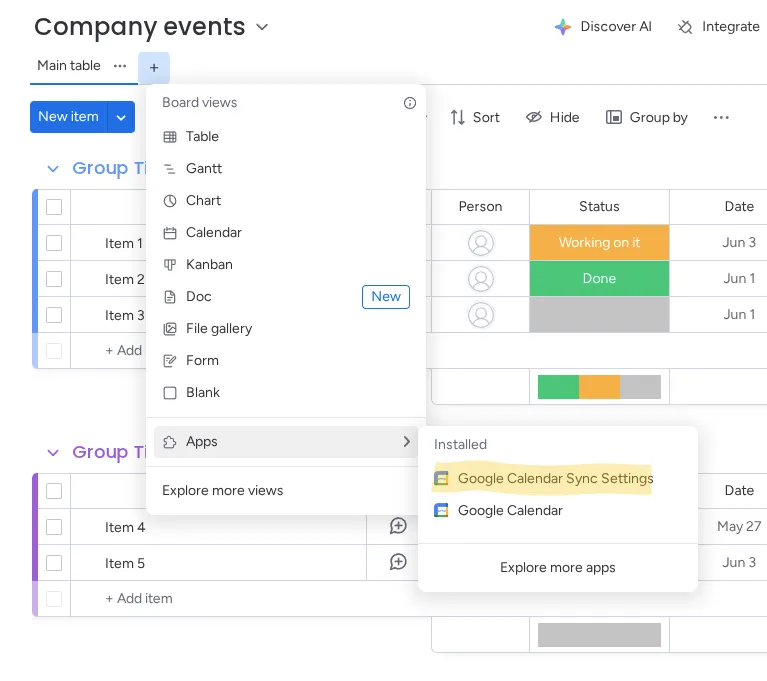
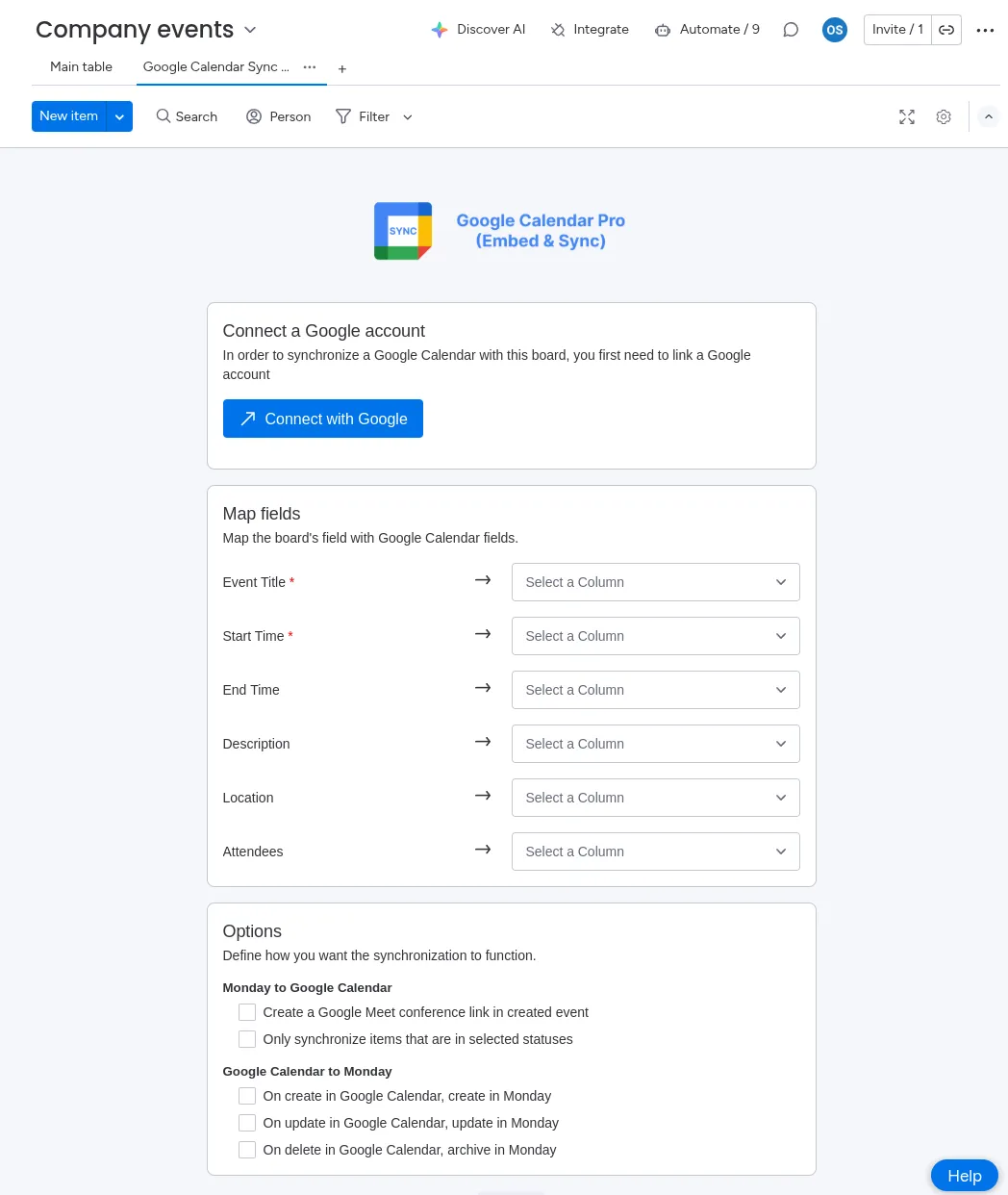
Once authorized, you’ll be taken to the sync setup screen.
- 2
Connect your Google Account to enable calendar access.
- 3
Map the fields between your monday.com board and Google Calendar, such as event title, date, time, and attendees.
- 4
Configure your sync preferences, including whether sync is one-way or two-way, and how often updates should occur.
How do I get the public link of my calendar?
🔒 Security notice
This guide will help you make your Google Calendar public, which allows it to be embedded using Calendar Embed & Sync. Please note: Making a calendar public means anyone with the link can view its contents. If your calendar contains sensitive or private information, we strongly recommend not making it public. Unfortunately, Google Calendar does not currently provide any alternative method for embedding calendars outside of their own platform.
Step by step
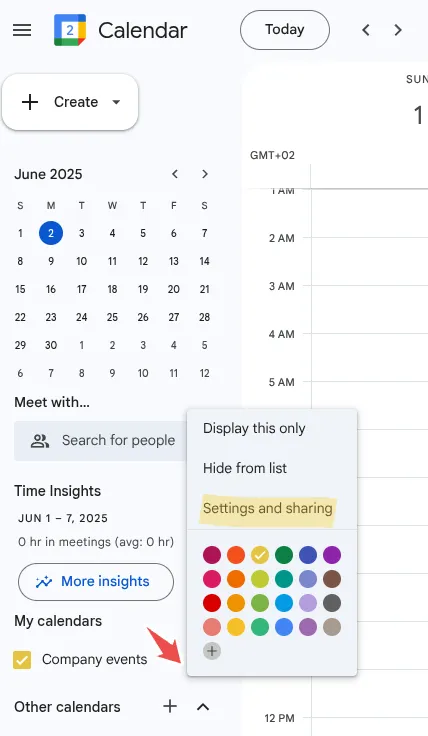
Open Google Calendar. In the left-hand panel, locate the calendar you want to embed. Click the three-dot icon next to it, then select Settings and sharing.
Sharing settings
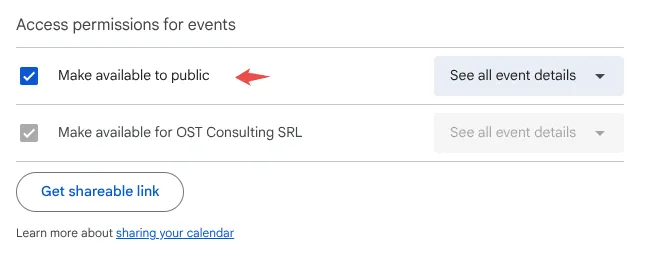
Scroll to the Access permissions section and check the box labeled Make available to public.
Integrate calendar
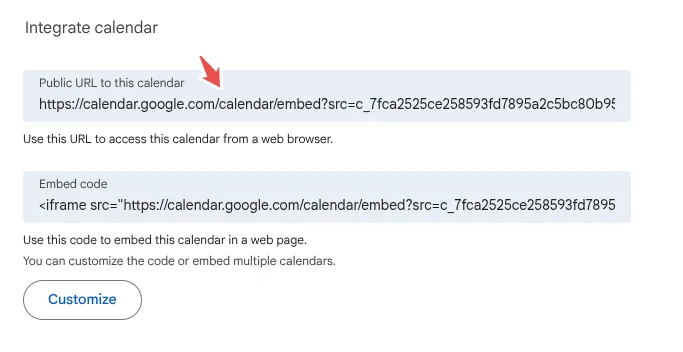
Scroll down to the Integrate calendar section and copy/paste the Public URL to this calendar value.
Still have questions?
Our team is happy to help. Reach out through our support portal and we will get back to you.