
Content Security Policy
Control which resources HTML Macro Pro can load on Confluence pages: allow-all vs restricted mode, 12 predefined templates and custom CSP rules.
Two modes
The Content Security Policy tab has one mode switch with two options, quoted exactly as they appear:
- “No, allow all external resources to be accessed or included in Confluence pages.” This is the default on a fresh install. A warning banner on the settings screen explains the risk: any external resource can load inside macros.
- “Yes, restrict to only allowed resources.” Only hosts on your allowlist can load. Everything else is blocked.
How restricted mode behaves
In restricted mode, anything not on the allowlist is blocked at the browser level: the policy is applied as a real CSP header on the sandbox. When a macro tries to load a blocked resource, the whole macro is replaced by a “Content Security Policy violation” banner that names the blocked URL (“The following URL has been blocked: …”), so you always know exactly which host to allow next. Noise from browser extensions is filtered automatically and does not trigger the banner.
Changes apply the next time a page loads.
Start from a template
The fastest way to build your allowlist is the template library: predefined rulesets for the services teams embed most.
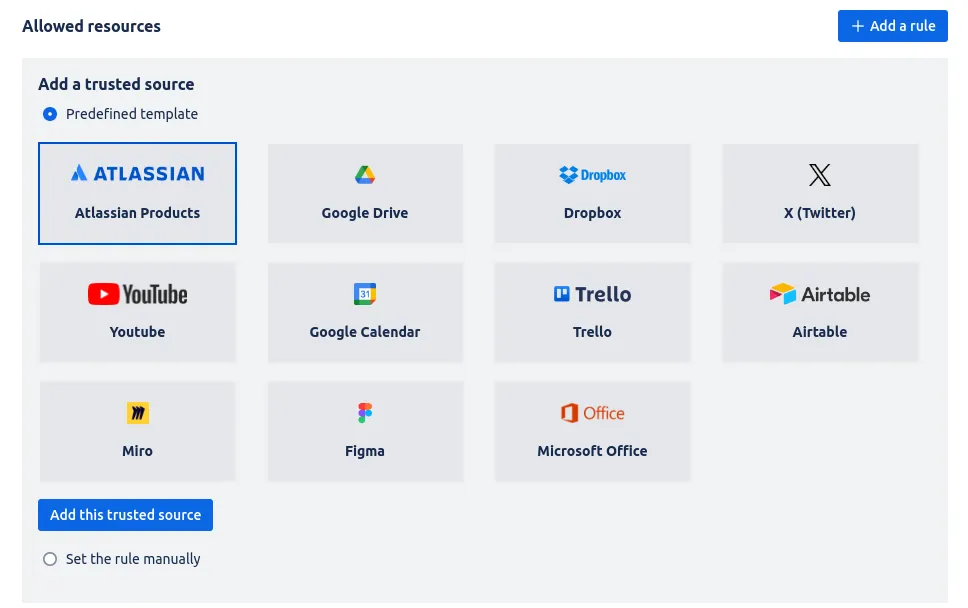 Start from a predefined ruleset.
https://*.atlassian.nethttps://*.atlassian.comhttps://atlassian.designhttps://drive.google.comhttps://docs.google.comhttps://fonts.googleapis.comhttps://apis.google.comhttps://ssl.gstatic.comhttps://*.googleusercontent.comhttps://*.dropbox.comhttps://*.dropboxstatic.comhttps://*.twitter.comhttps://*.twimg.comhttps://*.t.cohttps://*.youtube.comhttps://*.ytimg.comhttps://calendar.google.comhttps://*.trello.comhttps://trello.comhttps://*.trellocdn.comhttps://*.airtable.comhttps://airtable.comhttps://*.miro.comhttps://miro.comhttps://*.figma.comhttps://figma.comhttps://*.office.comhttps://office.comhttps://*.diagrams.netAdd manual rules
Click “Add a rule” to allow a host that no template covers. A rule is a Host (wildcards with * are supported, and the host must start with http:// or https://) plus at least one policy checkbox:
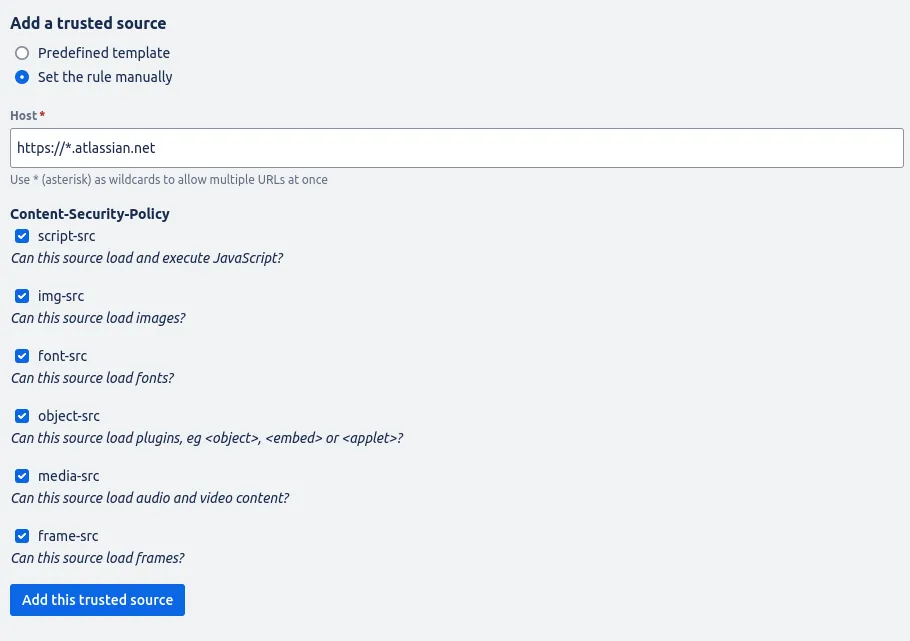 Define your own Content Security Policy rules.
| Directive | What it controls |
|---|---|
| script-src | Can this source load and execute JavaScript? |
| img-src | Can this source load images? |
| font-src | Can this source load fonts? |
| object-src | Can this source load plugins, eg <object>, <embed> or <applet>? |
| media-src | Can this source load audio and video content? |
| frame-src | Can this source load frames? |
Practical tips
- Start from a template. It already covers the asset hosts the service pulls from.
- One host is often not enough. Modern sites load fonts, images and scripts from CDNs on other hosts. Expect to add two or three rules for one service.
- Let the violation banner guide you. It names the exact URL that was blocked, which tells you the next rule to add.
- Changes apply on the next page load. No reinstall or republish needed.
Where to go next
- Managing security: the settings screen and who can use the macro at all.
- Troubleshooting: what the violation banner looks like and how to fix it.
Add HTML Macro Pro to Confluence
Securely embed websites and custom code in your Confluence pages.