
Embedding websites
Step by step: embed a website or URL inside a Confluence page with HTML Macro Pro, then edit and resize the embedded block.
Key features
- Automatic resizing of the iframe to 100% width
- Securely embedded in Confluence using a sandbox that separates user context from the embedded content
- Simple and user-friendly interface
Step by step walkthrough
Add the HTML Macro to your page
Navigate to the page where you would like to embed a website or URL. In the page content, add the HTML Macro by typing /html.
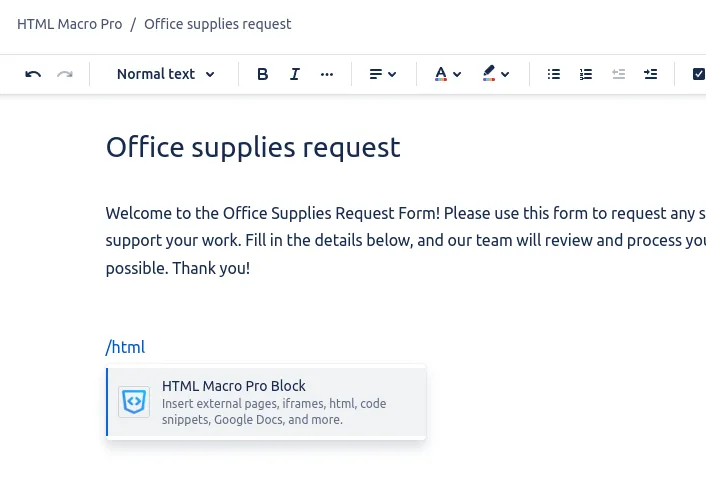 Type /html in the page to insert the HTML Macro Pro block.
Or insert it from the toolbar
Alternatively, click the ”+” icon in the toolbar and select the Macro from the right pane.
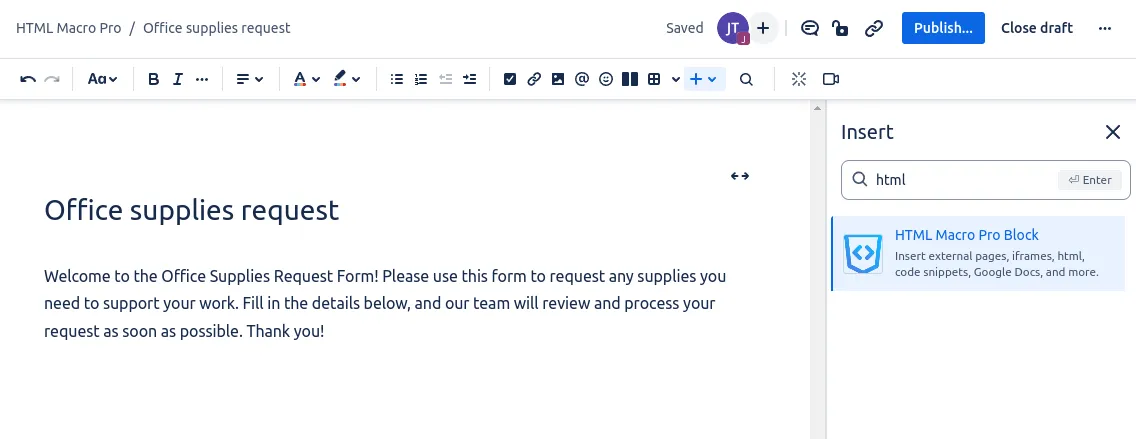 Insert HTML Macro Pro from the Confluence toolbar.
Enter the URL to embed
Once added, a popup will appear, prompting you to enter the URL you would like to embed.
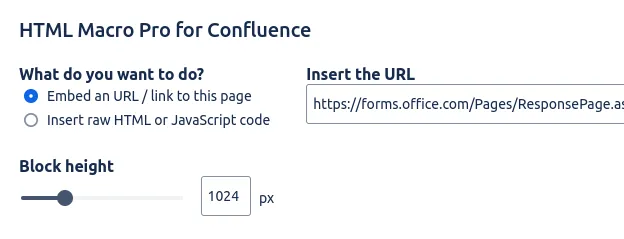 Paste the URL of the website you want to embed.
Set the height (optional)
Optionally, set the height of the embedded content block with the Block height control (a slider plus number input, default 1024 px, up to 4000 px).
Save the block
Click Save. Your Macro block will display a preview message.
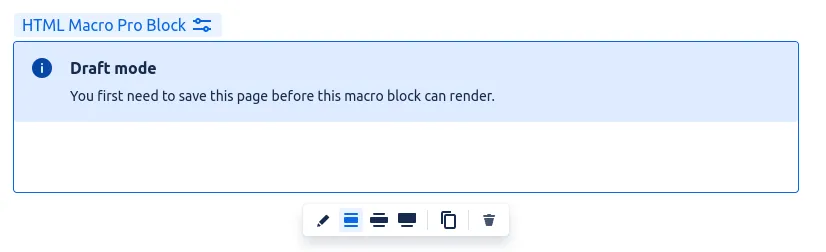 Save the block to see a preview message.
Publish the page
To finalize, click the blue Publish button in the top-right corner of the page. You are done.
 Publish the page to display the embedded website.
Edit and resize
After adding the Macro to a page, you will see a set of buttons when hovering your mouse over the block:
 The block toolbar appears on hover.
- The first button on the left opens the configuration modal, allowing you to change the URL and settings for the block.
- The three buttons in the middle control the maximum size to which the block should resize.
- You can also duplicate the Macro block.
- Finally, the last button, marked with a trash bin icon, allows you to remove the Macro block from the page.
When a site will not embed
Some websites refuse to be embedded anywhere: they send security headers that block rendering inside iframes, and no macro can bypass that. If a URL will not load, see Troubleshooting.
Add HTML Macro Pro to Confluence
Securely embed websites and custom code in your Confluence pages.