
Get started with HTML Macro Pro for Confluence
Install HTML Macro Pro for Confluence, publish your first embedded website or code block in under a minute, and find every guide from here.
What HTML Macro Pro does
Welcome to the user guide for HTML Macro Pro. In this guide, we will walk you through the features of our extension for Confluence. HTML Macro Pro for Confluence is a third-party app developed specifically to meet the need for embedding custom code within your favorite Atlassian product.
Is this secure? Yes, security is a top priority in the design of this macro. Custom code runs within a secure sandbox, isolated from the user context. Confluence administrators have full control over allowed content by setting Content Security Policies (CSPs) for pages. Additionally, administrators can restrict which user groups are permitted to add this macro to pages.
Install the app
Install from the Atlassian Marketplace
Open the HTML Macro Pro listing and click Get it now, then pick the Confluence site you want to install it on. Or in Confluence, go to Apps > Explore more apps and search for “HTML Macro Pro”. You need Confluence admin rights to install apps.
The app adds one macro block to the editor and one admin settings screen. It requests read-only Confluence permissions and cannot write to your pages; the details are on the Privacy & data storage page.
Insert the macro
Edit any Confluence page and type /html, then select the HTML Macro Pro block.
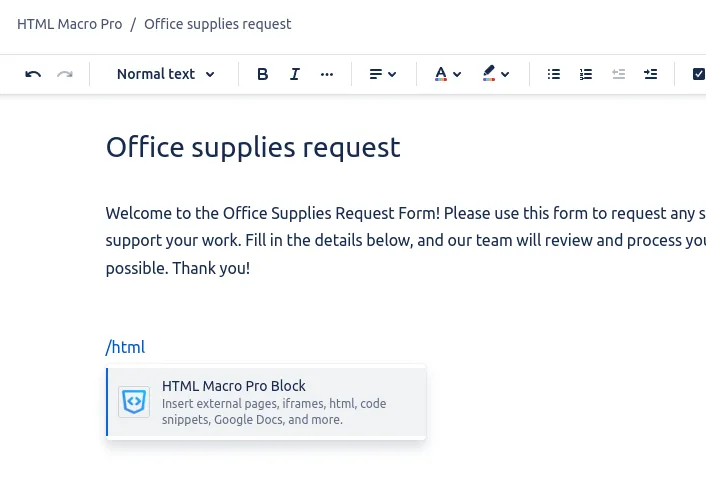 Insert the macro with the /html slash command.
Paste a URL
In the configuration modal, choose Embed a URL / link to this page, paste the address in the URL field and click Save.
Publish the page
Click Publish. The content renders on the page inside a sandboxed frame. That is the whole flow; the Embedding websites guide covers every option along the way.
What you can do
- Embed websites and URLs in a Confluence page, with the iframe automatically resized to full width: see Embedding websites.
- Embed custom code (HTML, JavaScript and CSS) with syntax highlighting, executed inside a secure sandbox: see Embedding code.
- Generate mini apps with AI using a ready-made prompt that makes ChatGPT, Claude or Gemini produce code that works inside the macro: see Generate with AI.
- Embed the tools you already use, from Google Docs to Trello and YouTube: see Integrations & examples.
- Manage security with Content Security Policies and per-group permissions, so administrators stay in control: see Managing security.
For admins
Two settings are worth reviewing right after install. A fresh install applies no restrictions (any external resource can load) and every user can add the macro. Managing security covers both: restricted Content Security Policy mode and per-group permissions.
Add HTML Macro Pro to Confluence
Securely embed websites and custom code in your Confluence pages.