
Embedding code
Insert raw HTML, CSS and JavaScript into a Confluence page with HTML Macro Pro, executed safely inside a sandbox with syntax highlighting.
Key features
- Seamless integration of custom HTML, JavaScript, or CSS code within Confluence
- Secure execution within a sandbox, isolated from the user context
- Syntax highlighting for easier editing and readability
Don’t want to write the code yourself? Use the ready-made AI prompt to have ChatGPT, Claude or Gemini generate it for you: see Generate with AI.
Step by step walkthrough
Open the raw code option
Follow the same steps as in Embedding websites to add the Macro to the page. In the configuration modal, select the Insert raw HTML or JavaScript code option.
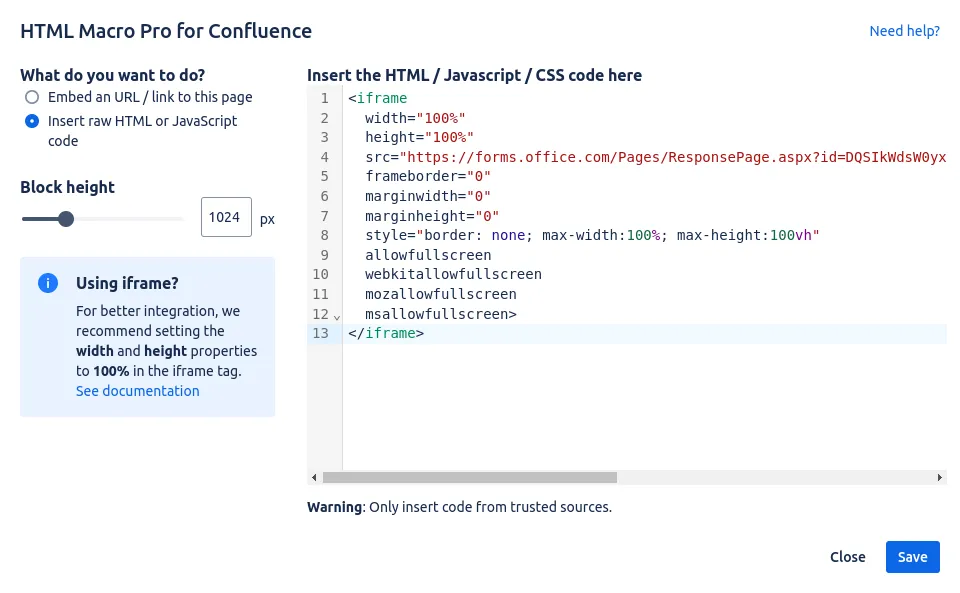 Choose the raw code option in the configuration modal.
Paste your code
Copy and paste your HTML code into the right pane. The editor highlights HTML syntax, adapts to Confluence light and dark mode, and shows a warning under the code: only insert code from trusted sources.
Size any iframe to 100%
If adding an iframe, we recommend setting its width and height properties to 100%. The editor detects iframes in your code and shows a “Using iframe?” banner with the same recommendation.
Save the block
Click the save button.
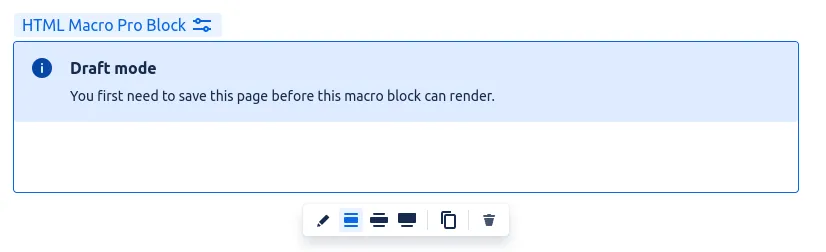 Save the custom code block.
Publish the page
Publish your changes by clicking the blue Publish button in the top-right corner of the page.
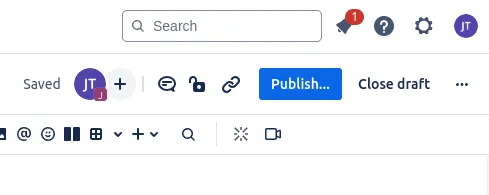 Publish to render your custom code.
A snippet to try
Paste this self-contained example into the code editor to see HTML, CSS and JavaScript working together. It renders a small status callout with a live timestamp:
<div style="font-family: system-ui, sans-serif; border: 1px solid #d0d7e2; border-left: 4px solid #1082fa; border-radius: 6px; padding: 12px 16px; max-width: 480px;">
  <strong style="color: #0a1424;">Deployment status</strong>
  <p style="margin: 6px 0 0; color: #3a4a5e;">
    All systems operational. Last checked <span id="ts"></span>.
  </p>
</div>
<script>
  document.getElementById('ts').textContent = new Date().toLocaleString();
</script>
Everything is inlined, so it works even when your admin restricts external resources.
Good to know
- Storing data:
localStorageworks inside the macro but is shared across every macro on your Confluence site. Namespace your keys (for examplemyWidget_v1_state) so macros do not overwrite each other. - Some browser APIs are blocked inside the sandbox. Generate with AI lists every restriction and the working replacement, and its ready-made prompt makes AI tools respect them automatically.
Add HTML Macro Pro to Confluence
Securely embed websites and custom code in your Confluence pages.